Zoom Companion App – Full Instructions
Complete instructions for using the ShareTheBoard Zoom companion app
ShareTheBoard Secures Impact Awards at SXSW EDU 2026 and LTSMG 2026
First of all, many users prefer to use ShareTheBoard to, well, share their board. In this case, your choice of video conferencing tools has no impact, as your viewers need only a Web browser to see your board clearly and even interact with it directly. To accomplish this, simply start a new session in the app and share the session-specific URL with your viewers. This will give your viewers access to Board View – a content-only, completely unobstructed, and fully interactive view of your shared surface.
It goes without saying that if you’re working with a fully in-person audience, that is also the recommended way to share your board. The same is true if you’re planning on filling your board with loads of detailed content.
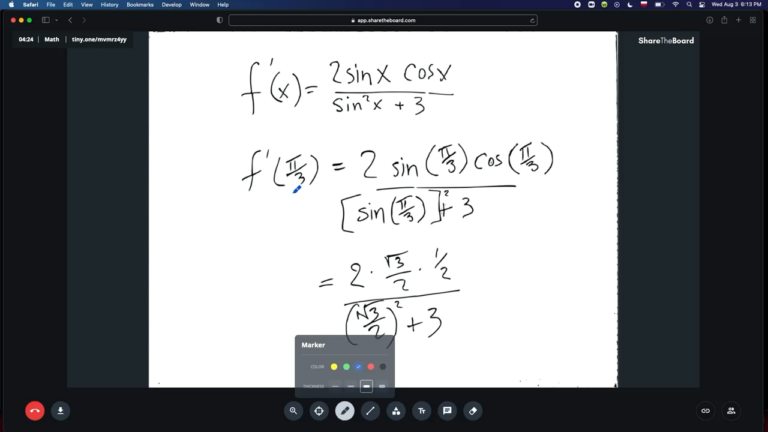
Give your viewers the ability to interact directly with your shared surface, with Board View
Now, if you’re working with a remote or hybrid audience, you may want to take advantage of ShareTheBoard’s “Content Overlay” feature: this allows all detected board content to be visually amplified while making obstacles (such as presenters) appear transparent. If this is your goal, you have a couple of options:
Now, keep in mind, that if you want your viewers to have the ability to interact with your shared surface, you’ll still want to share that Board View link with them.
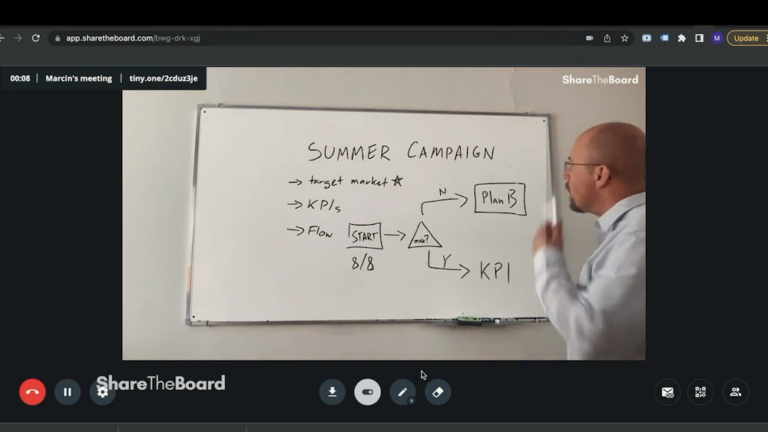
ShareTheBoard can identify your board contents and serve it over your video, making obstacles appear transparent.
But that’s not all! We’ve also released our Zoom Companion App. To use this app you’ll still need to run STB (either via the Web App or the Content Camera) but then the Board View from your session is made available inside of Zoom! That means that all of your viewers can not only see your board clearly, they can interact with it too – all within one application.
And we will be launching more apps within other leading video conferencing solutions too. Stay tuned…


